Note: These instructions only apply to software versions that are using the CimLM Licensing System.
Some users may want to be able to silently activate or deactivate their license. "Silent" means no user interface will be shown and no manual user input will be needed. This can be done using Command Prompt and the different parameters outlined below. The correct steps will depend on which software version is being used.
Older Versions
-
-
- Silent activation/deactivation is not supported
Modes:
Only one mode can be used at a time.
- -silentDeactivate (Computer-Locked/Dongle-Locked Deactivation)
- requires: -prodname=, -productfullversion=, -activationcode=, -nodeid=
- optional: -logpath=
- -silentActivate (Computer-Locked/Dongle-Locked Activation)
- requires: -prodname=, -productfullversion=, -activationcode=, -machinekey=
- optional: -donglesn=, -logpath=
- -networkSilentDeactivate (Network-Computer-Locked/Network-Dongle-Locked deactivation of all server licenses)
- -networkSilentActivate (Network-Computer-Locked/Network-Dongle-Locked Activation)
- requires: -activationcode=, -machinekey=
- optional: -donglesn=, -logpath=
Options:
Can use multiple per launch, required arguments will depend on the primary mode used, do not include the brackets '[]' in actual usage.
- -prodname=[Product ID here]
- Each product has a special code name identifier. This list below gives the ID used in CMD and then the conventional product name in quotes.
- 3DSprintBasic - "3D Sprint Basic"
- 3DSprint - "3D Sprint"
- 3DXpert -"3DXpert"
- -activationcode=[Activation code here]
- This is the license key (16 or 20 chars) with no dashes.
- -productfullversion = [xxxx.x.x]
- -machinekey=[xxxxxxxxxxxxxxxxxxxxxxxx]
- This is used for Activate mode
- This comes from Get Node ID Key. This tool can be called silently from Command Prompt with the "-silent c:\Temp\result.txt" parameter. This will create a GetNodeIDs output file in “c:\Temp\result.txt” containing the Machine key (line start with "KEY=....").
- -donglesn=[xxxxxxxxxxxxxxxxxxxxxxxx]
- This is used for Activate mode but is not required if machine key is used.
- This comes from Get Node ID Hasp ID.
- -nodeID=[xxxxxxxxxxxxxxxxxxxxxxxx]
- This is required for deactivation.
- This comes from Get Node ID Key. This tool can be called silently from Command Prompt with the "-silent c:\Temp\result.txt" parameter. This will create a GetNodeIDs output file in “c:\Temp\result.txt” containing the Machine key (line start with "KEY=....").
- -logpath=["C:\LogFileName.txt"]
- optional, file path for logging. Surround path in quotes if it includes a space.
Steps:
1) Launch Command Prompt from the start menu.
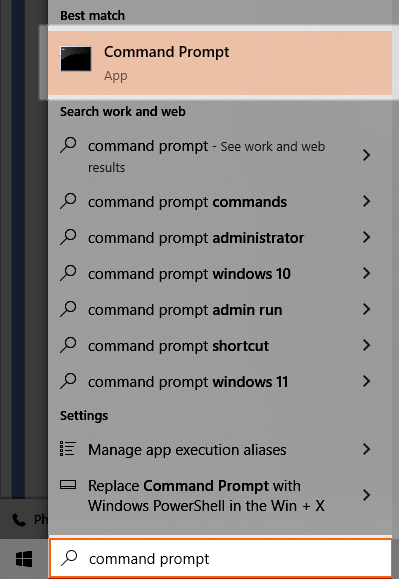
2) Use cd to change the directory to the location of the Activation Tool (3DSActivationTool.exe). Examples of the default locations are given below:
- 3D Sprint:
- v3: C:\Program Files\3D Systems\3D Sprint\CMLicense
- v4+: C:\Program Files\3D Systems\3D Sprint X.X.X.X\CMLicense
3) Call the 3DSActivationTool.exe with the desired mode/options. See the Examples section below .
4) If needed, Launch the License Manager to confirm the silent command completed correctly.
Examples
#1. Silent activate with Computer-Locked-License:
3DSActivationTool.exe -silentActivate -prodname=xxxxxxxx -machinekey=02qc00d6b5255e65a0083026 -productfullversion=2025.0.52 -activationcode=12345678ABCDEFGH
#2. Silent deactivate with Computer-Locked-License:
3DSActivationTool.exe silentDeactivate -prodname=xxxxxxxxx -nodeid=02qc00d6b5255e65a00xxxx -productfullversion=2025.0.52 -activationcode=12345678ABCDEFGH
#3. Silent activate Network-Dongle-Locked-License:
3DSActivationTool.exe -networkSilentActivate -machinekey=02qc00d6b5255e65a00xxxx -donglesn=1234521578 -activationcode=12345678ABCDEFGH
#4. Silent deactivate all network licenses
3DSActivationTool.exe -networkSilentDeactivate
Notes:
- The -activate, -donglesn=, -vernum=, etc parts of the arguments are case-insensitive. However, the values of those arguments such as would follow the -prodname= (ie FreeformModelingPlus), -nodeid=, etc may have case-sensitive checks, so the case should be preserved there.
- This article does not apply to network license client PCs as the activation/deactivation only occurs on the server. Users can edit the CLMConfig.xml file from the license folder (C:\ProgramData\3D Systems\LicFiles\[Product]\[Version]) and copy it to all the clients as a silent way of pointing the clients to the server.
- See also: Silent Installation/Uninstallation Instructions for Geomagic Software
CimLM v10.5-10.8
Modes:
Only one mode can be used at a time.
- -silentDeactivate (Computer-Locked/Dongle-Locked Deactivation)
- requires: -prodname=, -vernum=, activationcode=, -nodeid=
- optional: -logpath=
- -silentActivate (Computer-Locked/Dongle-Locked Activation)
- requires: -prodname=, -vernum=, activationcode=, -machinekey=
- optional: -donglesn=, -logpath=
- -networkSilentDeactivate (Network-Computer-Locked/Network-Dongle-Locked deactivation of all server licenses)
- -networkSilentActivate (Network-Computer-Locked/Network-Dongle-Locked Activation)
- requires: -activationcode=, -machinekey=
- optional: -donglesn=, -logpath=
Options:
Can use multiple per launch, required arguments will depend on the primary mode used, do not include the brackets '[]' in actual usage.
- -prodname=[Product ID here]
- -vernum=[Version number here]
- See Version Number section.
- -activationcode=[Activation code here]
- This is the license key (16 or 20 chars) with no dashes.
- -machinekey=[used by Activate, Update, Trial, and Borrow]
- This comes from Get Node ID Key. This tool can be called silently from Command Prompt with the "-silent c:\Temp\result.txt" parameter. This will create a GetNodeIDs output file in “c:\Temp\result.txt” containing the Machine key (line start with "KEY=....").
- -donglesn=[used by Activate, Update, Trial, and Borrow, but not required if machine key is used]
- -nodeID=[required for deactivation]
- -logpath=[optional, file path for logging. Surround path in quotes if it includes a space.]
- -pcname=[PC Name here]
Product IDs
Each product has a special code name identifier. This list below gives the ID used in CMD and then the conventional product name in quotes.
- 3DSprintBasic - "3D Sprint Basic"
- 3DSprint - "3D Sprint"
- 3DXpert -"3DXpert"
- 3DXpert4SW -"3DXpert for SOLIDWORKS"
Version Number
The version number (vernum) follow different conventions depending on the product. You can confirm the correct version number by referring to the name of the folder in the LicFiles directory:
C:\ProgramData\3D Systems\LicFiles\[prodname]\[vernum]
Steps:
1) Launch Command Prompt from the start menu.
2) Use cd to change the directory to the location of the Activation Tool (3DSActivationTool.exe). Examples of the default locations are given below:
- 3D Sprint:
- v3: C:\Program Files\3D Systems\3D Sprint\CMLicense
- v4+: C:\Program Files\3D Systems\3D Sprint X.X.X.X\CMLicense
3) Call the 3DSActivationTool.exe with the desired mode/options. See the Examples section .
4) If needed, Launch the License Manager or check the license folder to confirm the silent command completed correctly.
Examples
#1. Minimum required to silently activate with Computer-Locked-License:
3DSActivationTool.exe -silentActivate -prodname=xxxxxxxx -vernum=20231 -machinekey=02qka3a5757ea1ae0d28xxxx -activationcode=12345678ABCDEFGH
#2. Wrap Dongle silent activation on a server:
3DSActivationTool.exe -networkSilentActivate -machinekey=02qka3a5757ea1ae0d2xxxx -donglesn=1692321117 -activationcode=12345678ABCDEFGH
Notes:
- The -activate, -donglesn=, -vernum=, etc parts of the arguments are case-insensitive. However, the values of those arguments such as would follow the -prodname= (ie FreeformModelingPlus), -nodeid=, etc may have case-sensitive checks, so the case should be preserved there.
- This article does not apply to network license client PCs as the activation/deactivation only occurs on the server. Users can edit the CLMConfig.xml file from the license folder (C:\ProgramData\3D Systems\LicFiles\[Product]\[Version]) and copy it to all the clients as a silent way of pointing the clients to the server.