Note: This article only applies to software versions that are using the new CimLM Licensing Support.
This article outlines the steps for troubleshooting issues with a Network-Computer-Locked or Network-Dongle-Locked license (License Types).
1) Verify that the latest version of the license server utility is installed.
2) Verify that the service is running on the server.
a) Open the service monitor: C:\Program Files\Oqton\License Server\CimService Monitor.exe
b) Check the status icon in the bottom left.
c) If the status is Running then continue to Step 3 below.
d) If the status is Stopped then try starting the service.
e) If the service is unable to start then click on View Log to find details about the issue.
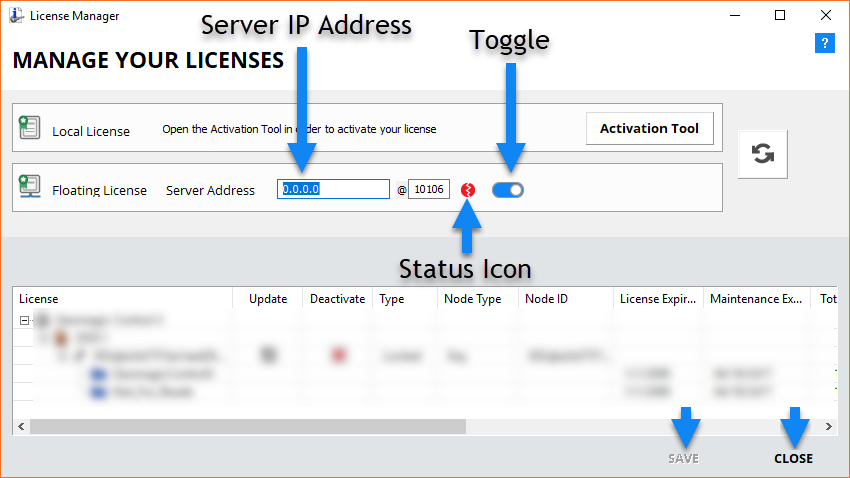
b) Make sure that the network license toggle is enabled. If it is not enabled, then turn it on and go to Step 2d.
c) Verify the correct server IP address is listed. If it is correct and the status is still red, then go to Step 4 below.
d) Enter the correct IP address and press Enter.
e) Click SAVE and then CLOSE. Note that newer versions may not have the save button.
4) Verify that the client PC can communicate with the server PC.