Please follow the steps below to activate your software product using a Network-Computer-Locked license. These instructions only apply to software versions that are using the new CimLM licensing system.
Server-side instructions:
1) Download and run the installer for our License Server Monitor.
2) Follow the InstallShield Wizard instructions to complete the installation. Detailed installation instructions can be found here.
3) Launch the Service Monitor: C:\Program Files\CLM\License Server\CimService Monitor.exe.
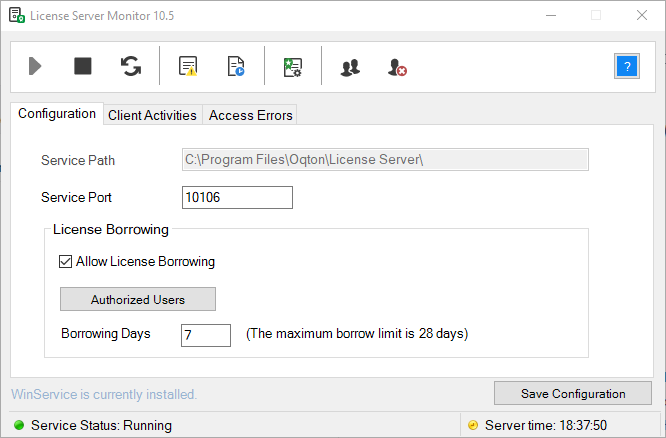
4) Click on License Manager.

5) Select the desired product from the drop-down list.
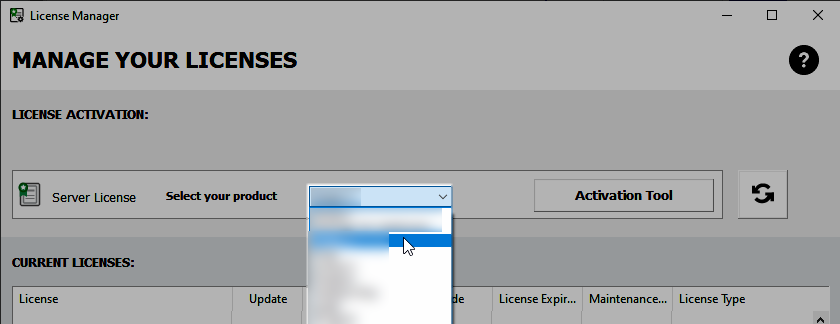
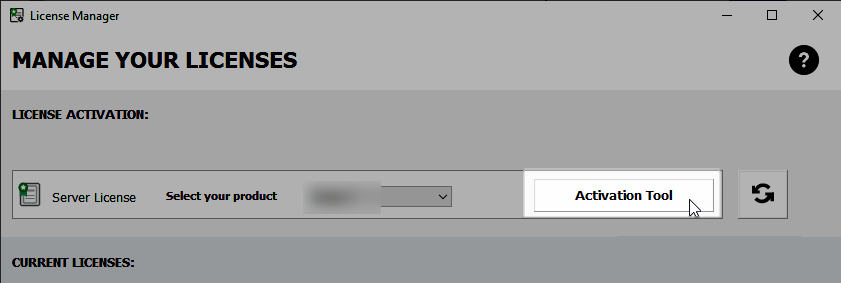
6) Click on Activation Tool.
7) Enter the relevant activation code and click the ACTIVATE button.

8) If the server does not have access to the internet the message below will appear. Skip to the Offline Activation instructions.

9) Click OK.

10) Refresh and verify that the license was added with the correct attributes.
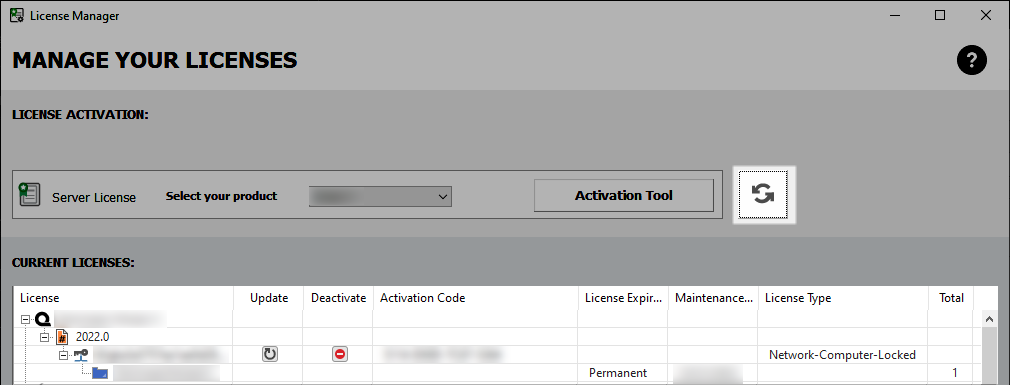
11) Click CLOSE and go back to the License Server Monitor.

12) Click Restart.

13) The lower left corner of the window should show Service Status: Running.

Additional instructions for managing the network license server can be found HERE.
Client-side Instructions:
1) Download and install the 3D Systems software application from the software support portal.
2) Start the application and make sure the computer is connected to the correct network. The license manager will launch.
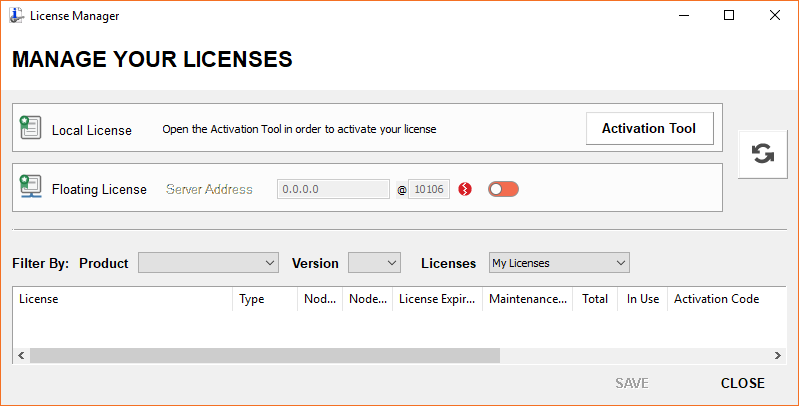
3) Turn the Floating License toggle on (Orange = Off, Blue = On).
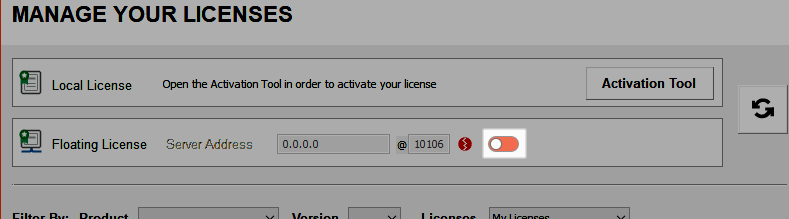
4) Enter the license server IP address and port number and press Enter. If the client software is installed on the server PC, then the Server Address should be entered as "localhost". The circular icon should turn green, and the license details will populate in the table below.
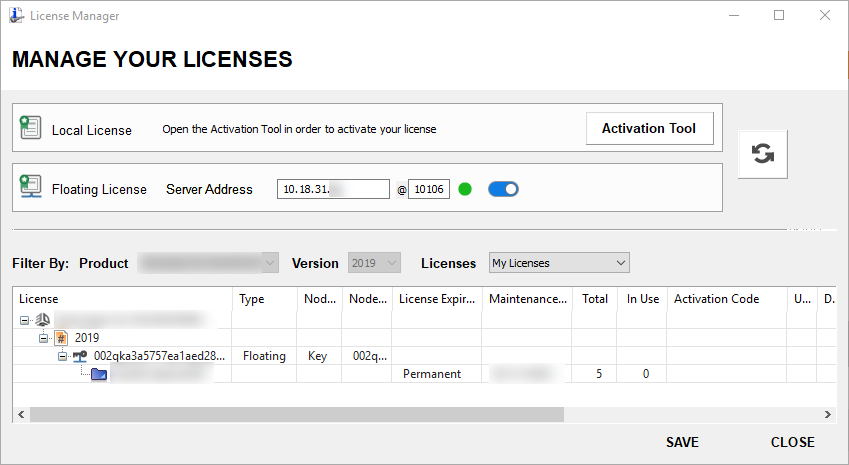
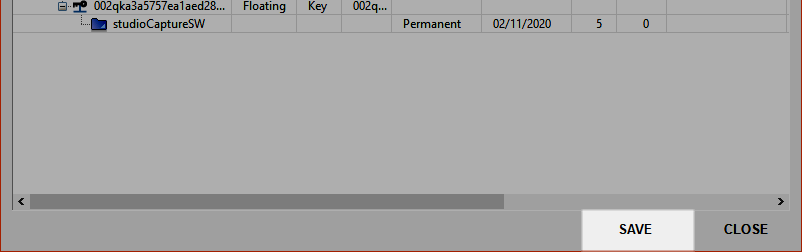
5) Click SAVE and relaunch the software. Note that some newer versions of the software will not have the save button and this step can be skipped.