Please follow the steps below to update the license maintenance expiration date. If a network/floating license is used then this will also update the license version. These instructions only apply to software versions that are using the new CimLM licensing system.
Note: If a CimLM license has not already been activated then please follow the appropriate activation steps based on license type: Computer-Locked-License, Dongle-Locked-License, Network-Computer-Locked License, Network-Dongle-Locked
Floating license users can skip to: Network-Computer-Locked License steps
Computer-Locked License
1) Launch the License Manager on the computer that is currently activated as shown in this article.
2) Click on the update icon next to the license in question.
3) Click the UPDATE button.
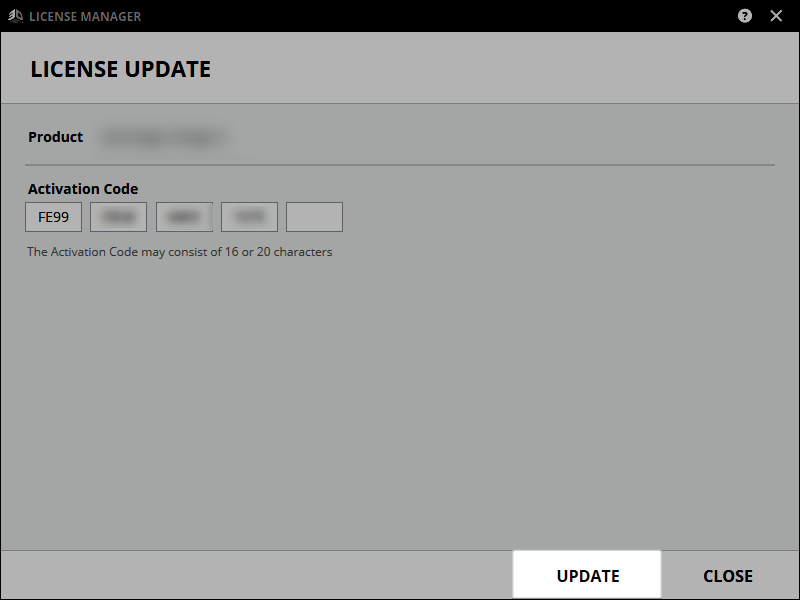
4) If the computer does not have access to the internet the message below will appear. Skip to the Offline Update article.
5) Click OK and restart the application.
Dongle-Locked License
Follow the same steps described for Computer-Locked with the dongle connected to the computer.
Network-Computer-Locked License
Note: Make sure that the latest version of the server utility is installed.
The latest version can always be found here: Network-Computer-Locked License Activation
Steps to update to the latest version can be found here: Update License Server Monitor
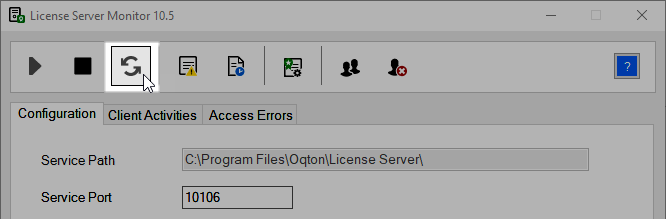
1) Launch the License Server Monitor: C:\Program Files\Oqton\License Server\CimService Monitor
2) Stop the service.
3) Click on License Manager.
4) Click on the update icon.
5) Select UPDATE.
6) If the computer does not have access to the internet the message below will appear. Skip to the Offline Update article.
7) Close the License Manager and Restart the service.
Network-Dongle-Locked License
Follow the same steps as Network-Computer-Locked with the dongle connected.