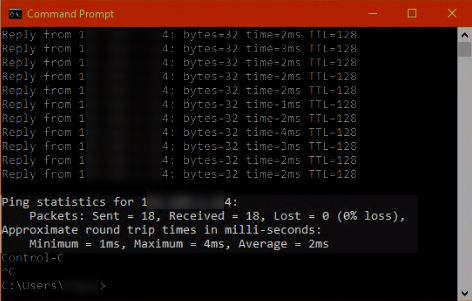
There are multiple different ways to troubleshoot the connection between a license server and client PC. The different steps below will verify the stability, speed, and openness of the connection.
Skip to:
PowerShell Test NetConnection
1) Open
Windows PowerShell through the Start menu on the client PC.
2) Enter the command:
test-netconnection IPAddress -port XXXXX
Replace "
IPAddress" with the server's IP Address and "
XXXXX" with the port the license server is running on.
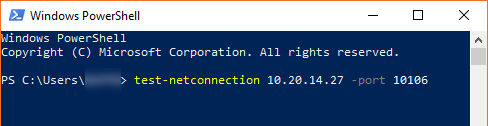
3) Press
Enter.
4)
Wait for the test to complete
5) If the result is
True then there is nothing blocking communication between the client and server. If the result is
False then the firewall and network security settings will need to be checked to find the source of the problem.
CMD Telnet
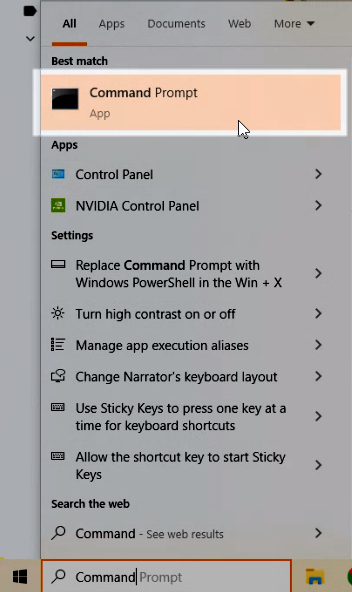
1) Open Command Prompt as Admin on the client PC.
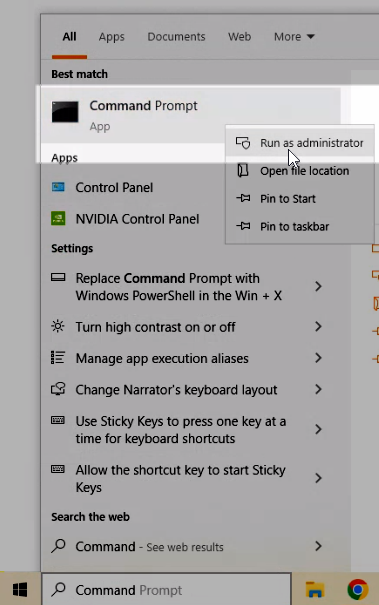
2) Enter the command: dism /online /Enable-Feature /FeatureName:TelnetClient
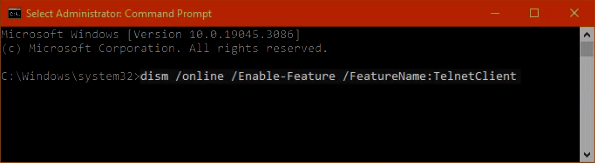
3) If prompted to restart type Y. Otherwise close Command Prompt.
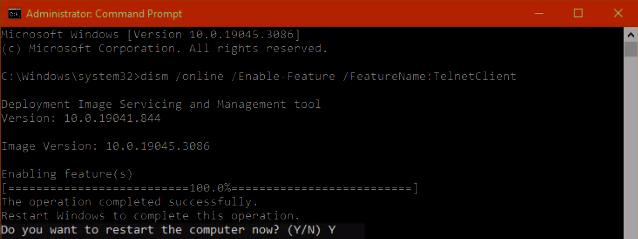
4) Open Command Prompt with normal permissions.
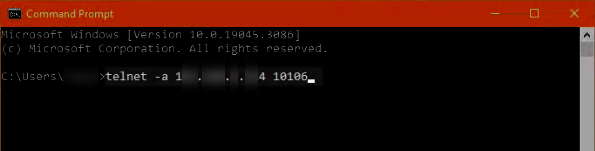
5) Enter the command: telnet -a IPAddress XXXXX
Replace "IPAddress" with the server's IP Address and "XXXXX" with the port the license server is running on.
6) If the connection is successful then a blank window will be shown.
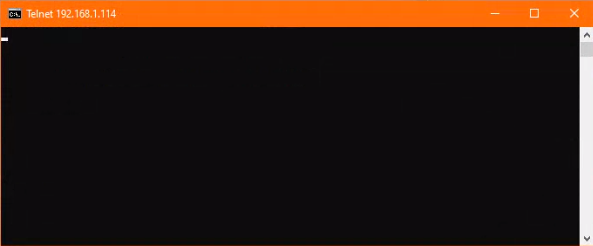
7) Leave this window open for a few hours and share screenshots of any errors that appear.
CMD Ping
1) Open Command Prompt as on the client PC.
2) Enter the command: ping -t IPAddress
Replace "IPAddress" with the server's IP Address.
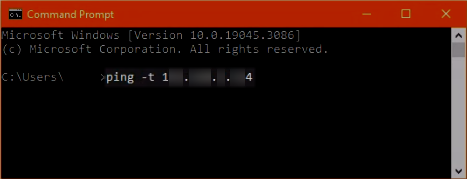
3) Let this run for a few hours and then press Ctrl+C to stop the test and share the results.