These instructions only apply to software versions that are using the new CimLM licensing system with the latest build of the server utility (found here).
License Usage
The license manager can be used on the client or the server to check how many seats are in use and who is using them. Instructions for checking usage are given below.
1) Launch the license manager
- Server:
- Open
C:\Program Files\CLM\License Server\CimService Monitor.exe - Select License Manager
- Client:
2) The number of seats that are in use will be shown in the table highlighted below.
3) Right click on the In Use column to view the user name/IP address of the clients that are using the license.
Remove User
Sometimes a client PC will need to be manually kicked off so that a different user can access that seat.
Note: A user that borrows a license cannot be removed.
Note: This tool does not work if you are using client software on the server PC.
The steps below show how to release a seat from the server utility.
1) Launch the License Server Monitor: C:\Program Files\CLM\License Server\CimService Monitor.
2) Click the Remove User button.
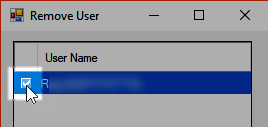
3) Check the box next to the user that should be removed.
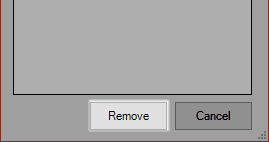
4) Click
Remove.
License Borrowing
Group Manager
In a floating license environment, the Group Manager utility enables a System Administrator to configure which packages or modules are available to which users. This prevents users accidentally grabbing modules, preventing use by others who should have access.
When assigning groups, the following principles apply:
- Each group has a unique descriptive name.
- For each group, the Administrator is able to define the list of packages and modules available to that group.
- Each group has a list of users assigned to it. A user may belong to one group only (or conflicts may arise).
- Users are identified by their Windows-login name (so access management is by user, not by PC).
- The limitations do not apply to package/module quantities. In other words, user groups are not assigned “quotas”.
- Users who do not belong to any group see the entire license content.
See below for the steps to use this functionality to prohibit a user from accessing the software:
1) Launch the License Server Monitor: C:\Program Files\CLM\License Server\CimService Monitor.
2) Click on Group Manager.
3) Click on + to create a new group.
4) Enter the name/description and click Add.
5) Leave the module table empty.
6) Click + to define which users shouldn't have access.
7) Select the desired users and click Add.
8) Click OK.
The Users View button enables the System Administrator to view all the users defined in the Group Manager and their assigned group. In the case of a domain, other users (those yet assigned a group) are also displayed. Using this dialog, the Administrator can assign or change an assigned group for users. For each user, a dropdown list of existing groups is displayed; the Administrator can select the appropriate group, and the user is assigned to that group. If the user was a member of a different group before, he will be removed from the previous group (since a user may belong to one group only).