Please follow the steps below to activate using a computer-locked license. These instructions only apply to software versions that are using the new CimLM licensing system.
Note: Please disconnect all docks and external network adapters when activating the software
Note: Changing the PC name after activation will cause an error. If such a change is needed, then the license will need to be deactivated before the name change.
1) Download and install the software from the software support portal.
2) Start the application and the license manager will launch. If not try these steps: How To Launch the License Manager
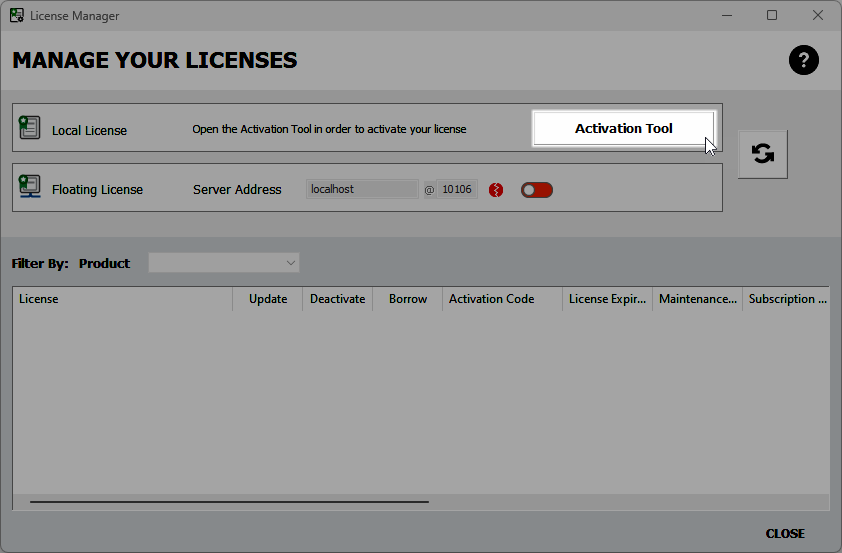
3) Click the Activation Tool button.
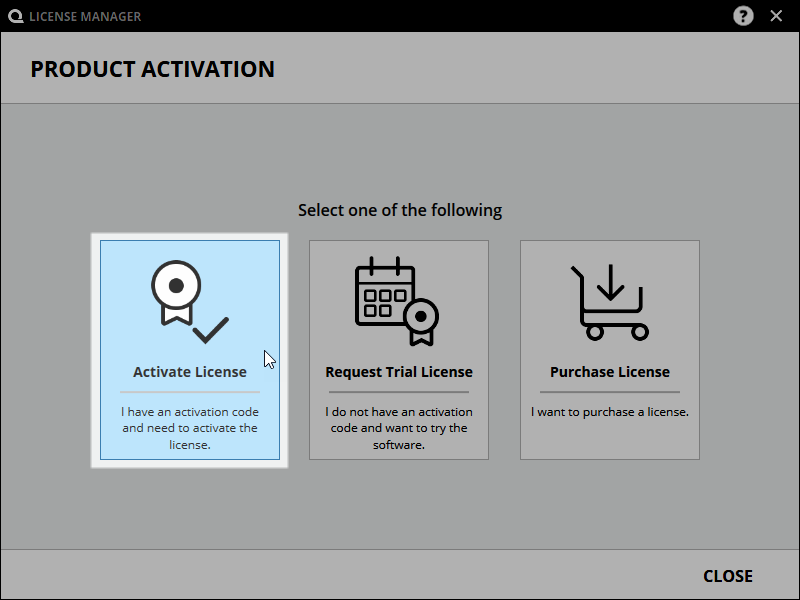
4) If prompted, select Activate License.
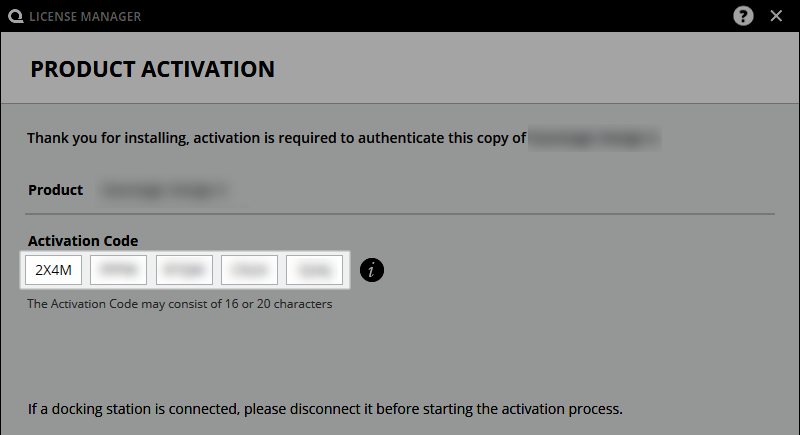
5) Enter the relevant Activation Code. Make sure to disconnect any docks or external ethernet adapters.
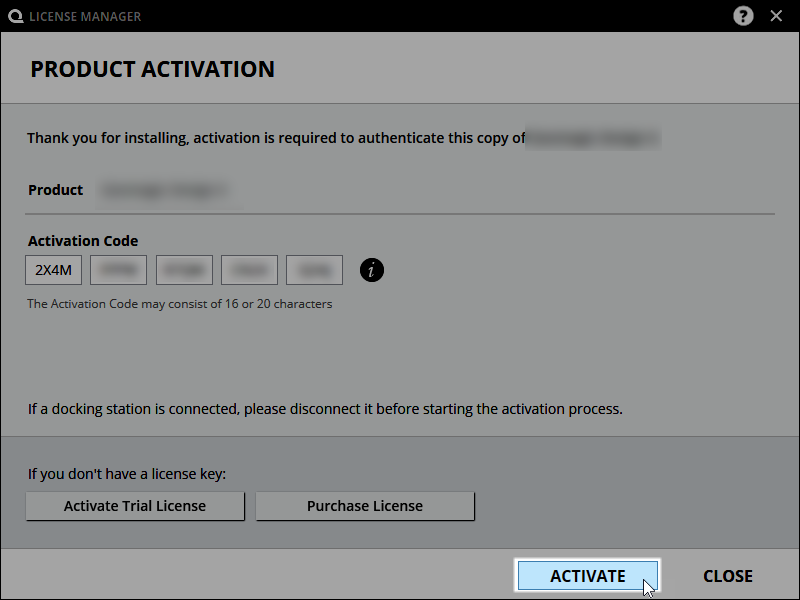
6) Click the ACTIVATE button.
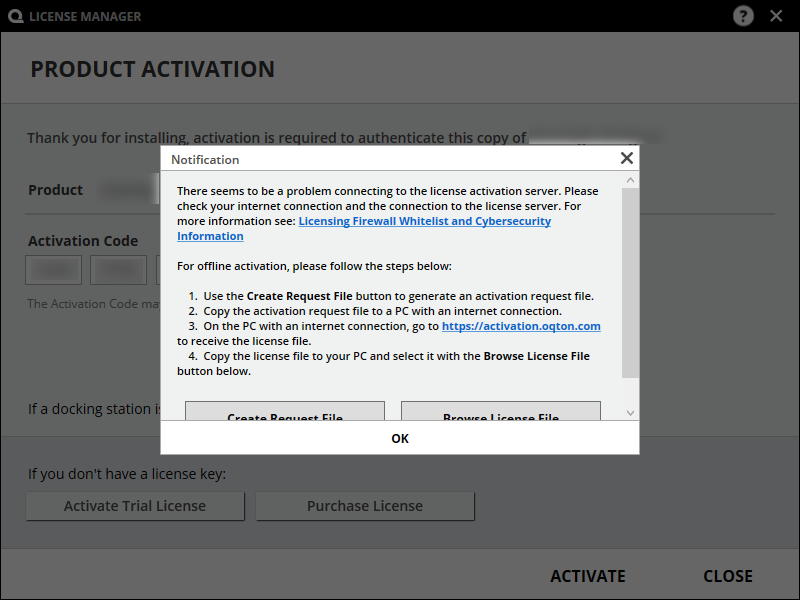
7) If the computer does not have access to the internet the message below will appear. Skip to the Offline Activation instructions.
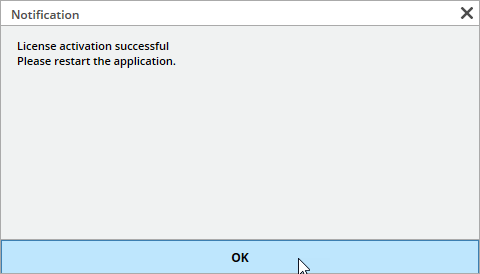
8) A message will appear confirming that the activation was successful.
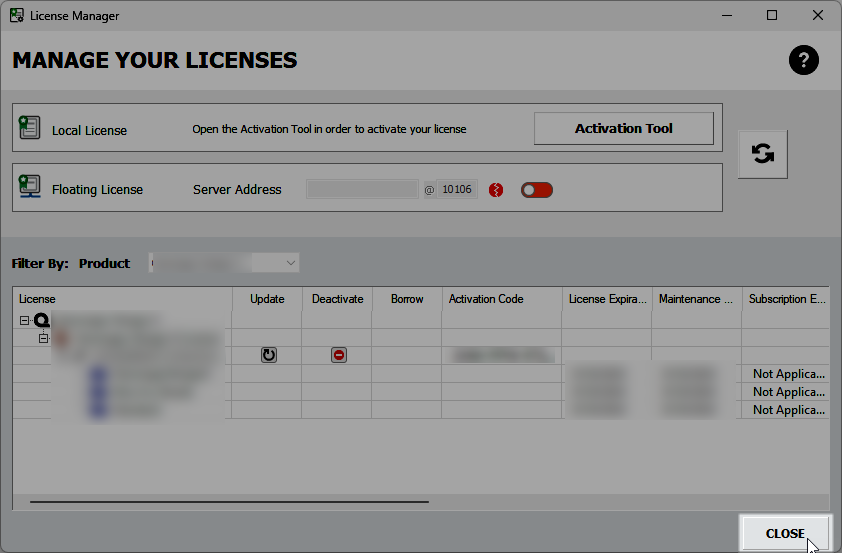
9) Click Close to exit the license manager.
10) Re-launch the program.
See Also: