Please follow the steps below to complete the CimLM license activation/deactivation/update. The correct steps will depend on which software version is being used.
These steps should only be done after following the initial steps from one of the articles below:

 CimLM v10.8+
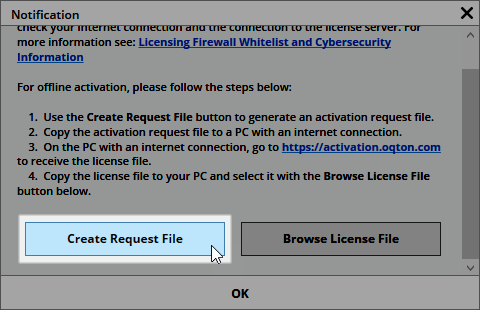
1) Click Create Request File.
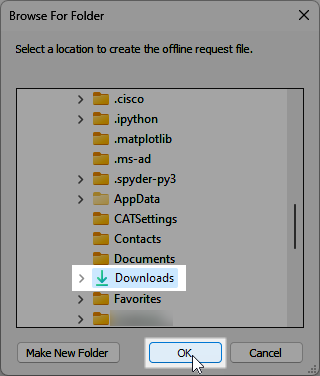
2) Browse to a convenient folder and click OK.
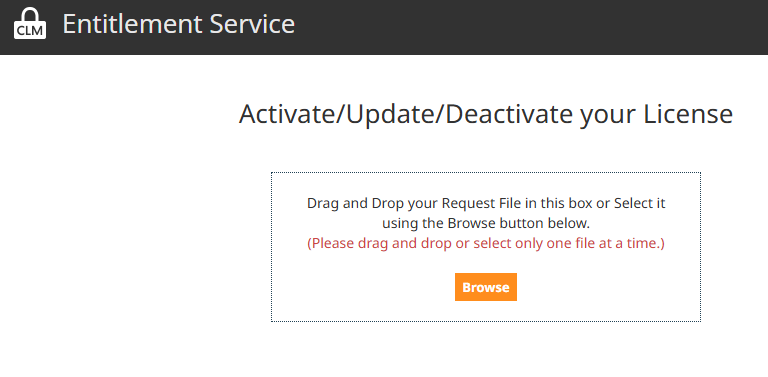
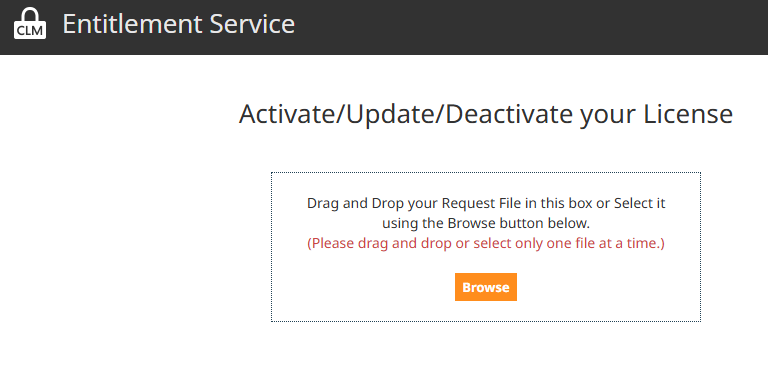
3) Upload the *.request file from the selected folder above to https://3dsystems.entitlement.services/offline
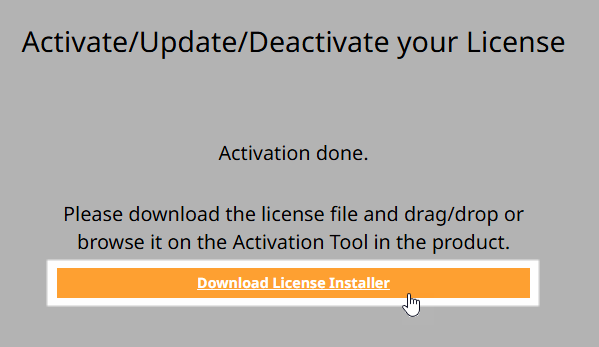
4) Click Download License Installer to download the license file (.cml).
5) Go back to the license manager and press the Browse License File button. Navigate to the downloaded *.cml file and select it.
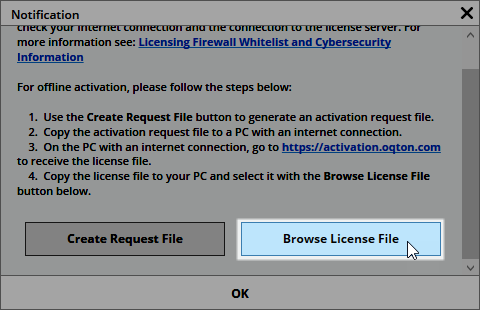
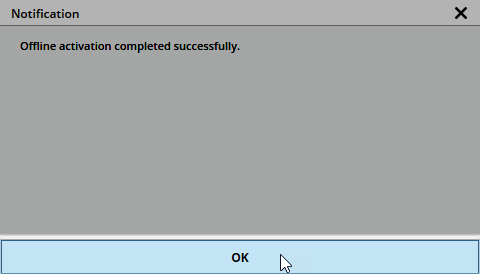
6) Click OK and re-launch the application.
CimLM v10.5-10.7
1) Copy the activate/deactivate/update/trial from C:\ProgramData\3D Systems\LicFiles\RequestFile and transfer it to a computer that is connected to the internet.
2) Upload the file to https://3dsystems.entitlement.services/offline
Note: The domains listed here may need to be whitelisted in the firewall settings of the secondary online PC.
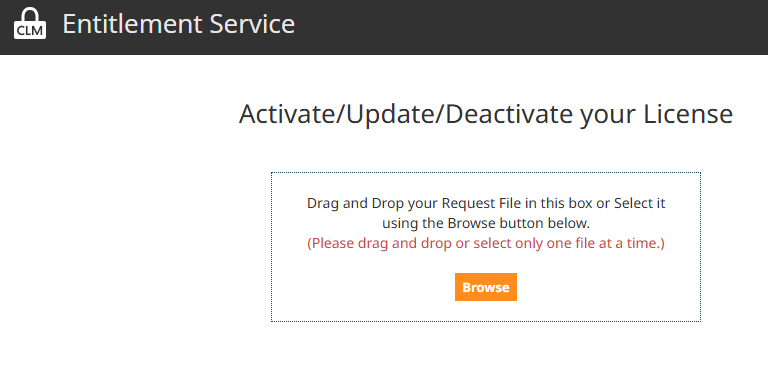
3) Click Download License Installer to download the license file (.cml).
4) Go back to the license manager and press the Browse button. Navigate to the downloaded .cml file and select it.
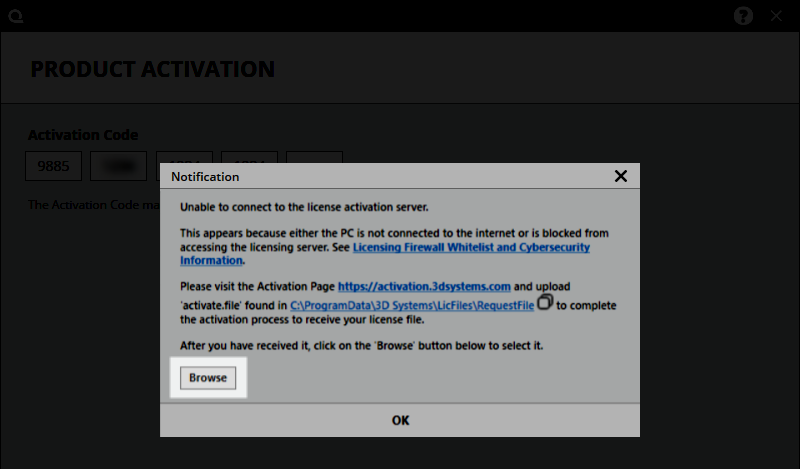
5) Click OK and re-launch the application.
All Older Software Versions
1) Copy the activate/deactivate/update/trial from C:\ProgramData\3D Systems\LicFiles\RequestFile and transfer it to a computer that is connected to the internet.
2) Upload the file to https://3dsystems.entitlement.services/offline
Note: The following domains listed may need to be whitelisted in the firewall settings of the secondary online PC:
3) This portal will provide an .exe file which can be run on the offline computer to complete the activation/update (This step does not apply to offline deactivation).
4) Re-launch the application.