This article will cover common troubleshooting steps regarding CimLM dongle license issues. Please gather all of the information mentioned in sections 1-6, and email it to support for assistance.
1) Activation Errors
Please activate per the licensing steps in the relevant article below. Provide screenshots of any errors/messages that occur.
2) Dongle Driver
Download and install the recommend dongle driver.
If the dongle is still malfunctioning, continue to the next step.
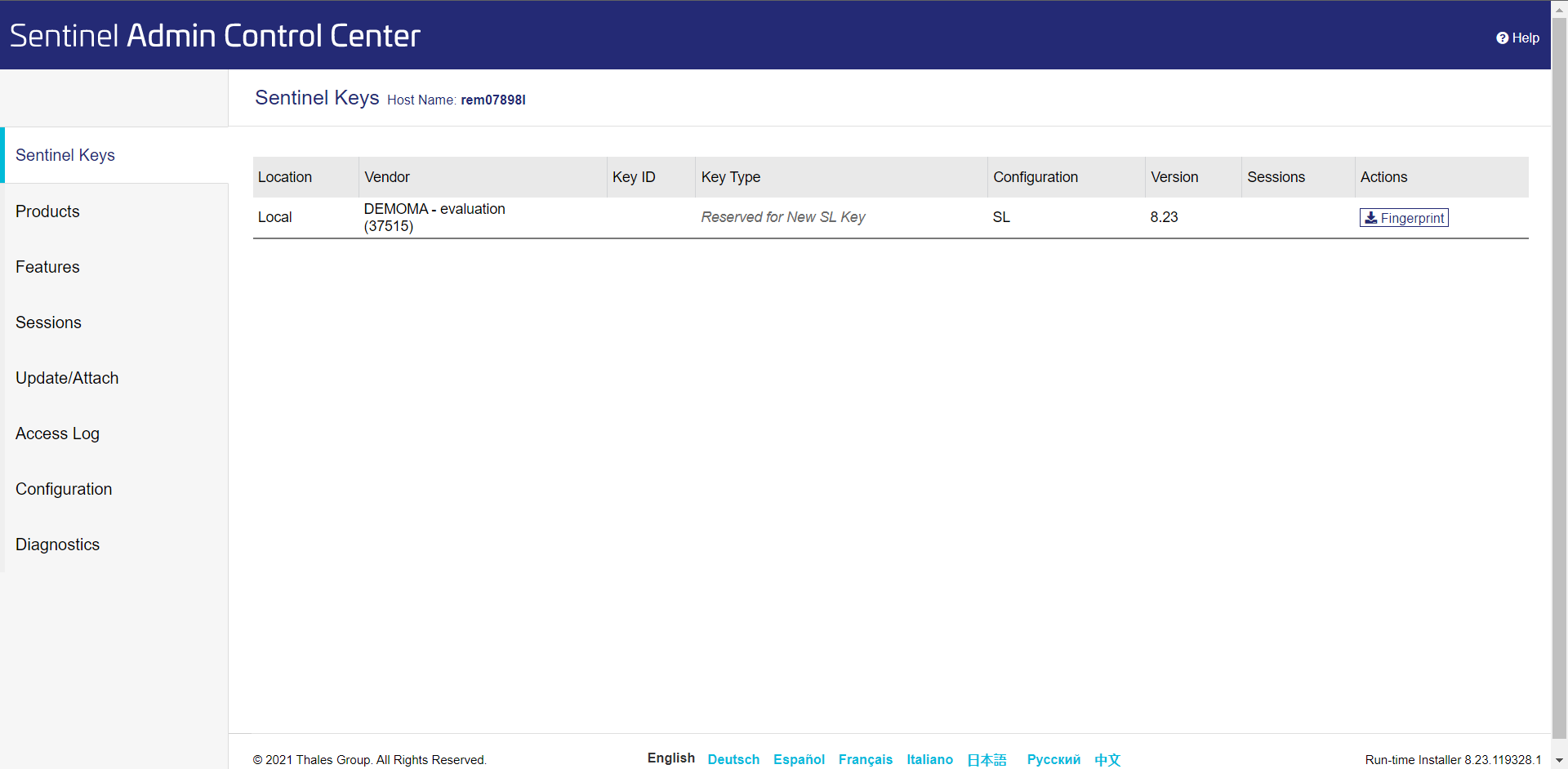
3) Check Sentinel Admin Control Center
Take a screenshot of the Sentinel Keys tab on this page:
http://localhost:1947/_int_/devices.html
There is no need to take screenshots of the other tabs. The page looks like this:
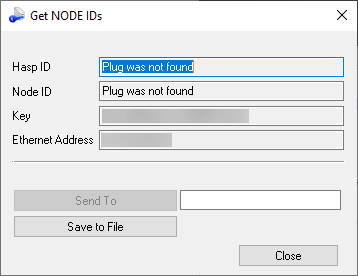
4) Save GetNodeIDs Log
Save the GetNodeIDs per these steps:
Get Node ID Instructions [CimLM]
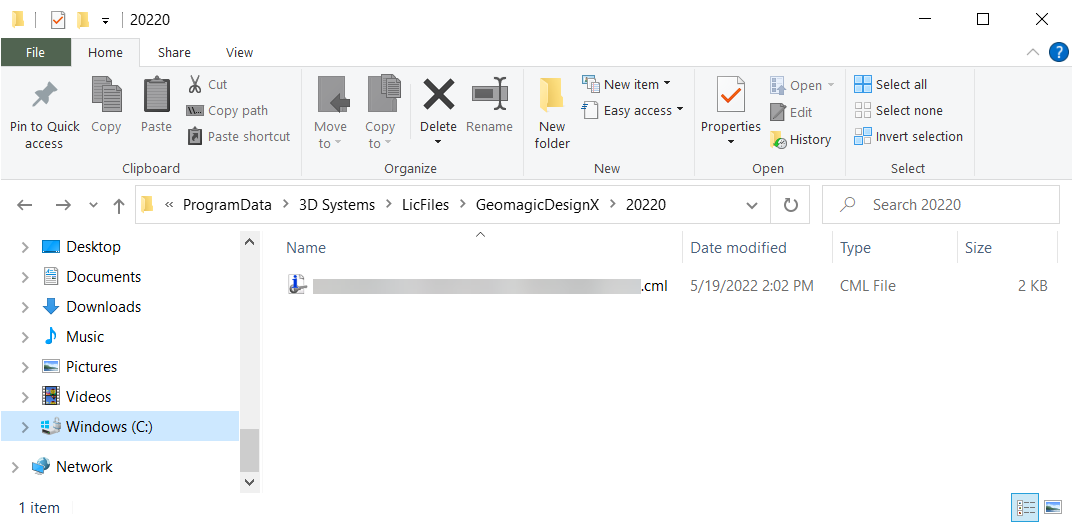
5) Check for the License File
Take a screenshot of the license folder:
C:\ProgramData\3D Systems\LicFiles\<Product>\<Version>
6) Check Device Manager
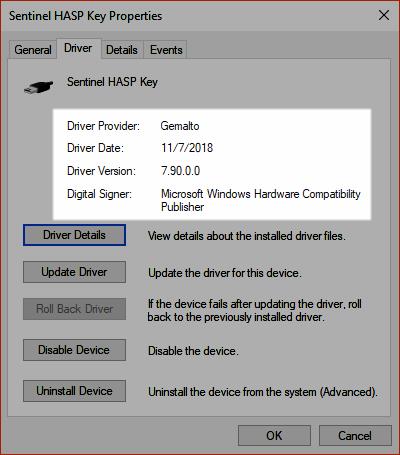
Take a screenshot of the dongle Properties by following these steps:
1. Open the Device Manager > Universal Serial Bus controllers. There may be up to three devices that start with "Sentinel" or "SafeNet".
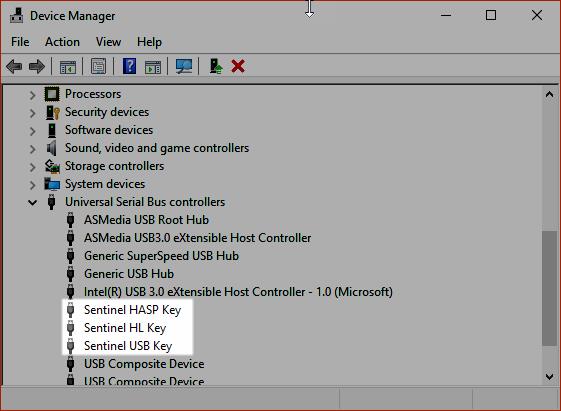
2. If none of these devices are listed, take a screenshot of this Device Manager window, with Universal Serial Bus controllers opened. Then skip to Section 7).
3. Right-click on one of the devices and click Properties.
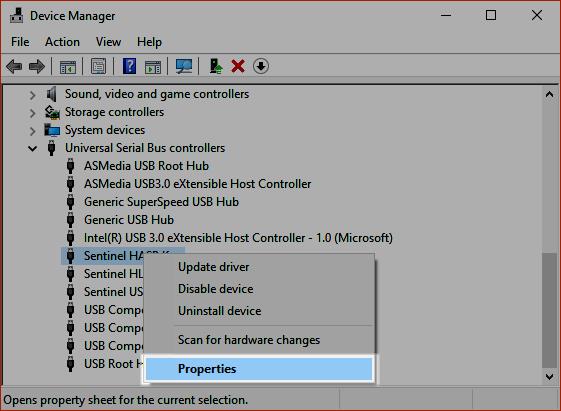
4. Take a screenshot of this window on the Driver tab as seen below:
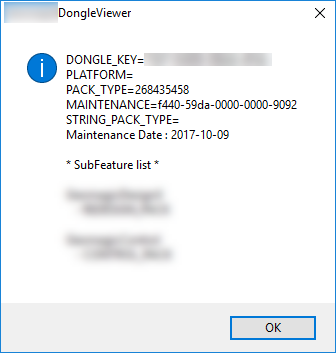
7) For Legacy Green/Red Dongles
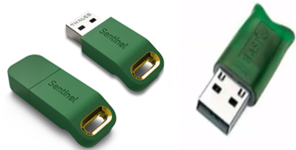
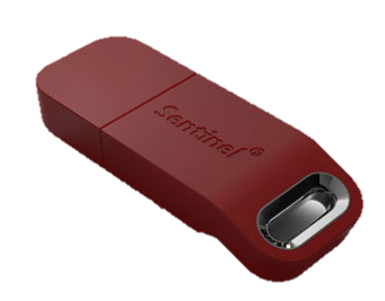
These steps only apply to NGL dongles that look like this:
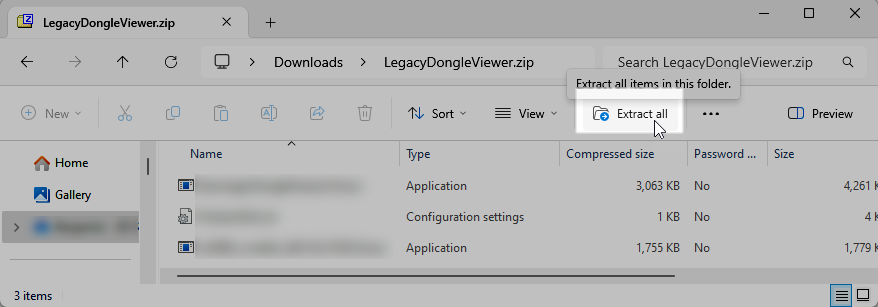
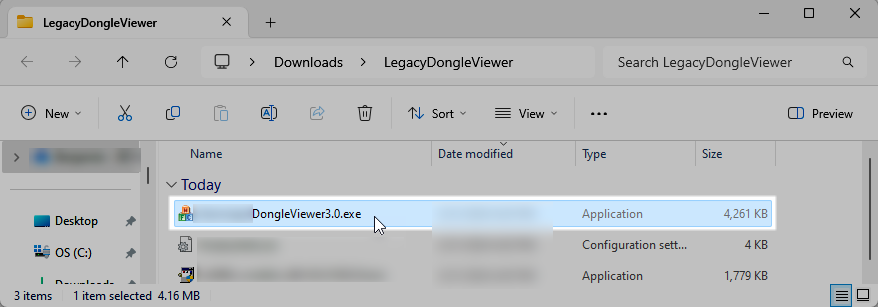
2. Run the DongleViewer3.0.exe. If a side-by-side error is shown, then install the included vs2008_vcredist_x86-9.0.21022.8.exe.
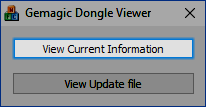
3. Select
View Current Information.
4. Send a screenshot of the resulting information.