Note: Automatic Trials are NOT available for the products below. Click on the relevant link to request a Trial license.
Please follow the steps below to activate a Trial license. These instructions only apply to software versions that are using the new CimLM licensing system and are not listed above.
1) Download and install the software from the software support portal.
2) Start the application and the license manager will launch.
3) Click the Activation Tool button.
4) Select Activate Trial License.
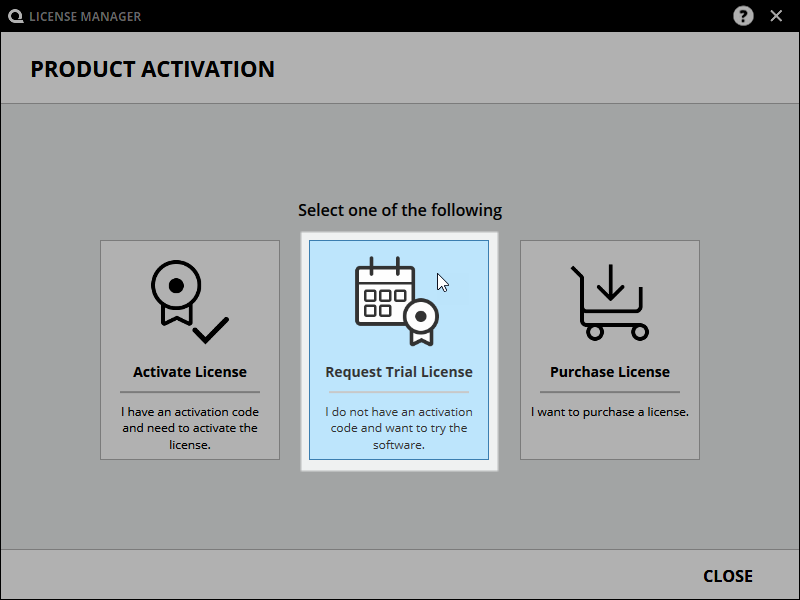
- or -
NOTE: If using 3D Sprint v3-v4, skip to alternate steps below.
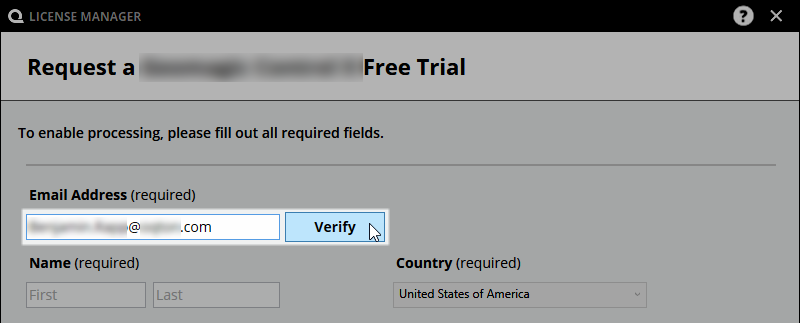
5) Enter your Email Address and click Verify. This will trigger a verification code to be sent to the address provided. If the email address has already been verified, then the button will stay grayed out and the next step can be skipped.
NOTE: If the Verify button is not shown then this means your PC is not connected to the internet or blocked from communicating with the CimLM servers. Please follow the offline email verification steps below.
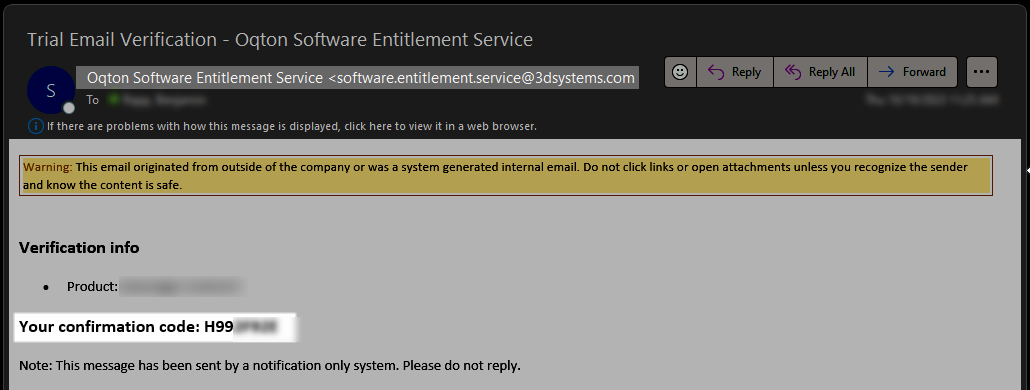
6) Locate the code in the verification email. The email should be sent from software.entitlement.service@3dsystems.com and may end up in a spam folder.
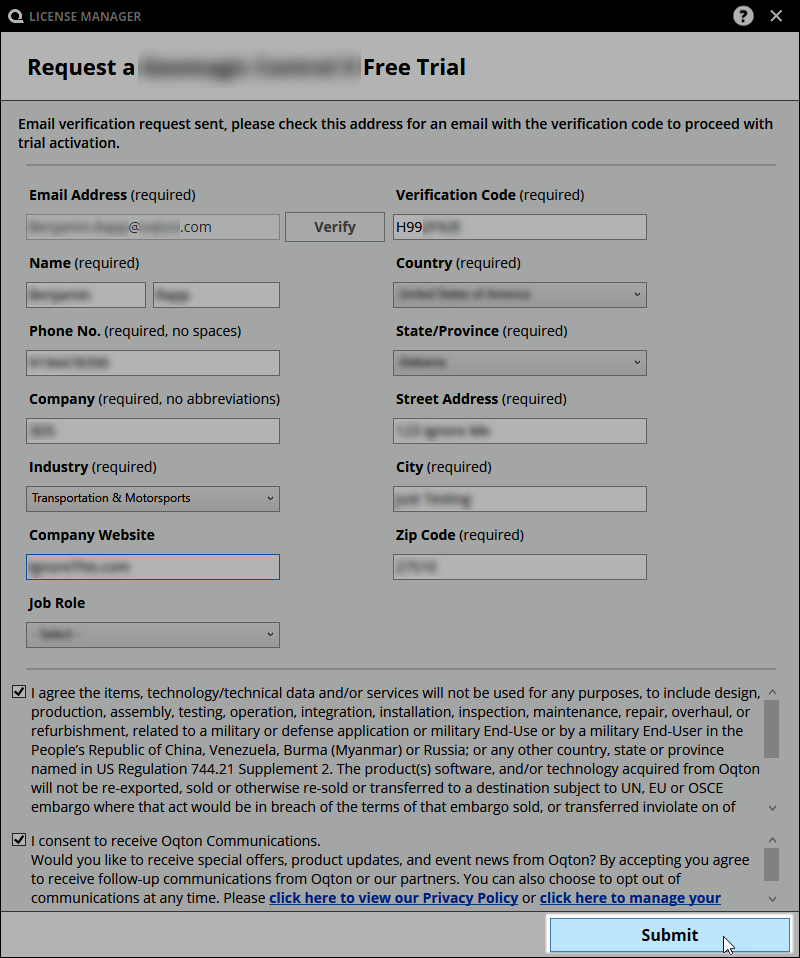
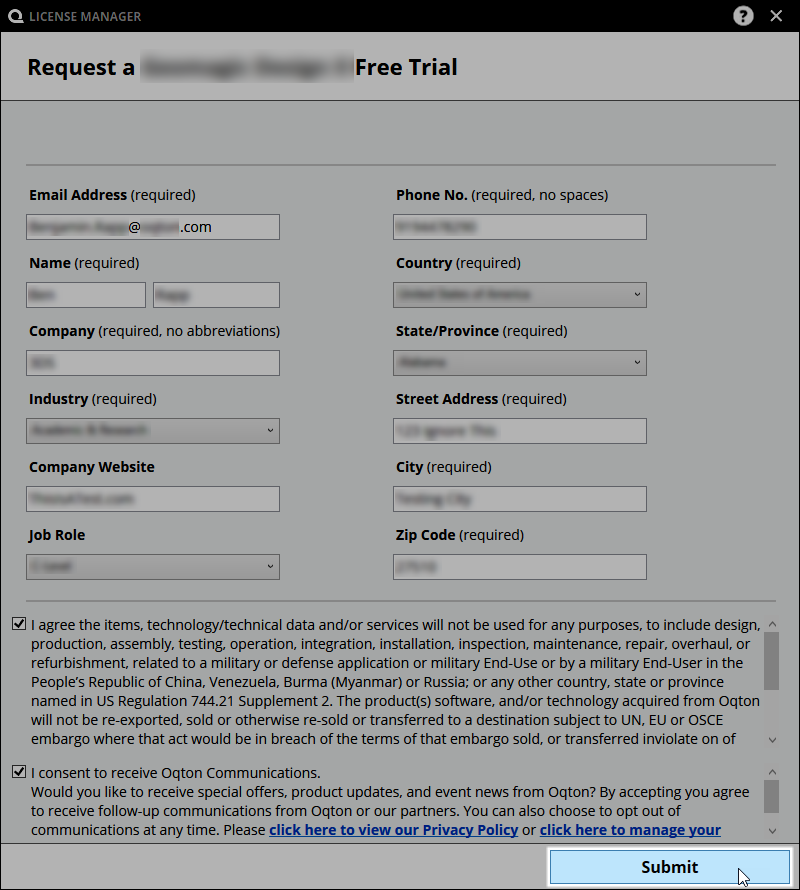
7) Fill out the contact information and click Submit. This form only allows English (Latin) characters without any accents.
8) The following message will display when the trial has been successfully activated.
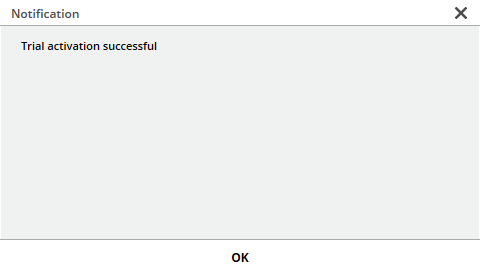
If this message appears then wait for an email with the next steps (make sure to check spam folder). It may take up to one business day for this request to be processed.
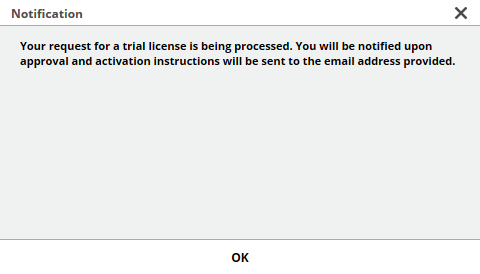
Offline Steps (With Email Verification):
6a) Fill out the contact information and click Submit. This form only allows English (Latin) characters without any accents.
7a) The offline notification will be shown.
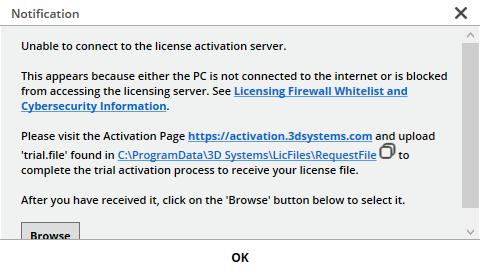
8a) Locate the trial request file here: C:\ProgramData\3D Systems\LicFiles\RequestFile
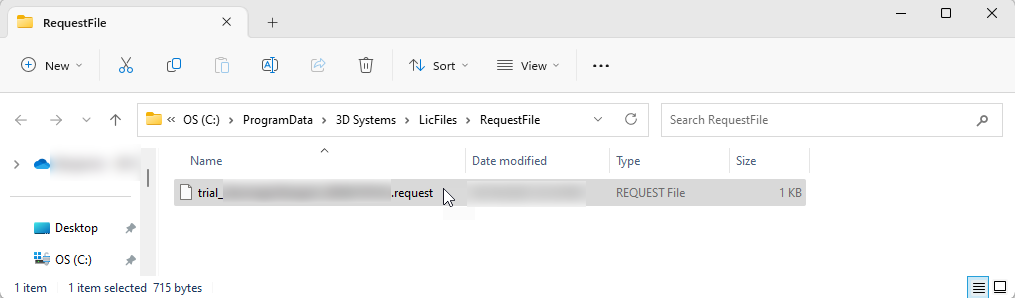
9a) Copy the file to a PC with internet access and navigate to the offline activation portal: https://activation.oqton.com/offline
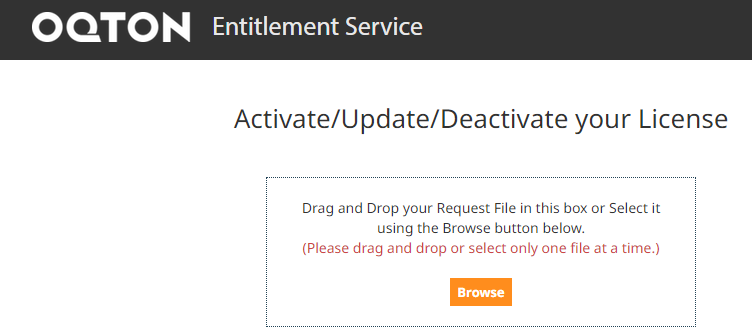
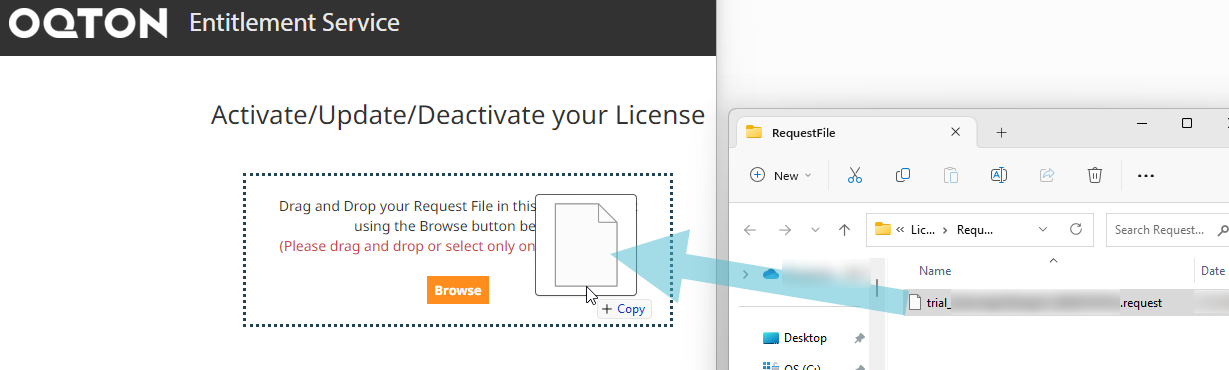
10a) Upload the trial request file to that page (drag & drop or browse to file)
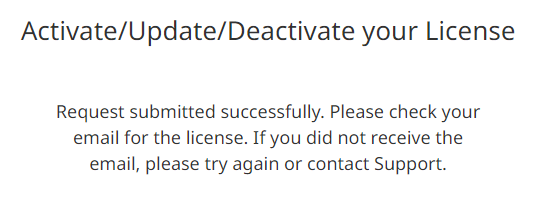
11a) The following message will display when the trial has been successfully activated.
12a) Locate the license download in the verification email. The email should be sent from software.entitlement.service@3dsystems.com and may end up in a spam folder.
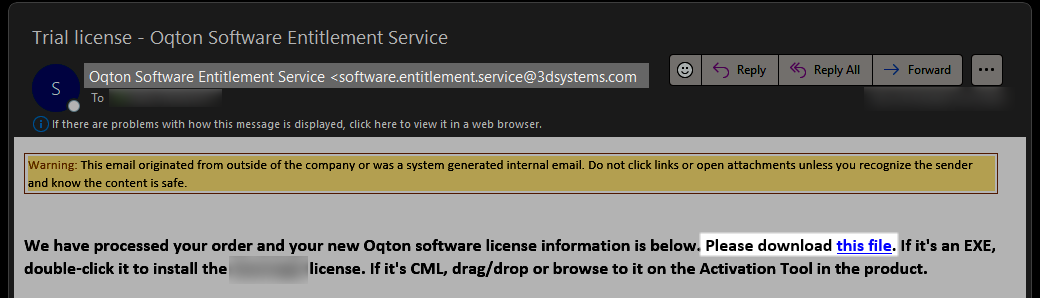
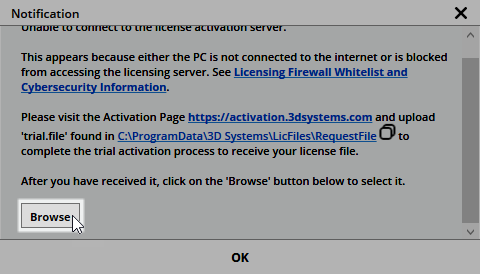
13a) Go back to the license manager on the client PC and click Browse. If that window is no longer open, then follow these steps: How to deploy a .cml license file
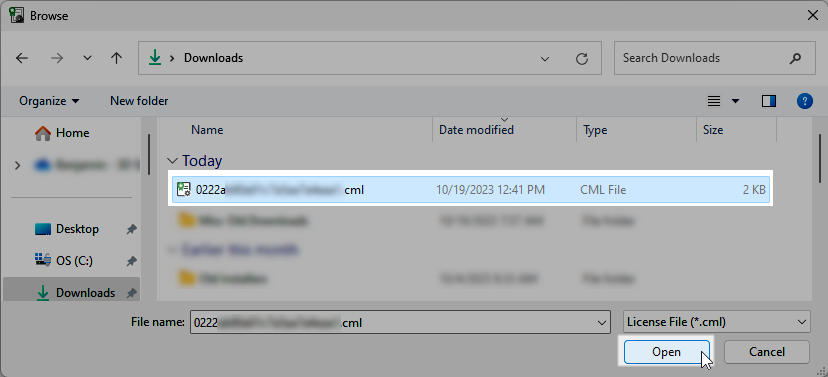
14a) Browse to the downloaded .cml file and click Open.
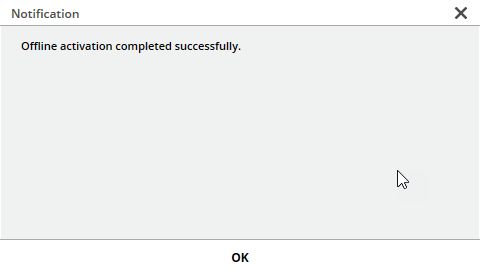
15a) The trial will be loaded and the success notification will be shown.
 Alternate Steps (No Email Verification)
5b) Fill out the contact information. This form only allows English (Latin) characters without any accents.
6b) Click the Submit button.
7b) The following message will display when the trial has been successfully activated.
If this message appears then wait for an email with the next steps (make sure to check spam folder). It may take up to one business day for this request to be processed.
8b) If the computer does not have an internet connection the message below will be shown. Go to the Offline Activation Article for further instructions.