Note: This article only applies to software versions that are using the new CimLM licensing system.
Online Activation
The following Domain/URL will need to be allowed through the firewall on any computer that will use online capability:
These domains need to be whitelisted under: Control Panel > Internet Options > Security > Trusted Sites
Port 443 is required for HTTPS communication to ses.3dsystems.com, stor.dddws.com, *.amazonaws.com
Offline Activation
If the desired PC has no internet access, then the URLs below are the required domains for the secondary online PC. When doing offline activation, a request file from the PC to be activated must be transferred to a secondary PC (with internet access) to generate the license file.
Client-Server Communication
For a network license the communication port may also need to be whitelisted (inbound and outbound). The default port is 10106.
By default, an inbound firewall rule is created on the server called "Cimatron LS". Some customers may need to edit this rule if the clients are not on the same subnet as the server.
1. Locate the inbound rule in the advanced firewall settings.
2. Double-click on the rule and navigate to the Scope tab.
3. Change Remote IP addresses to Any IP Address.
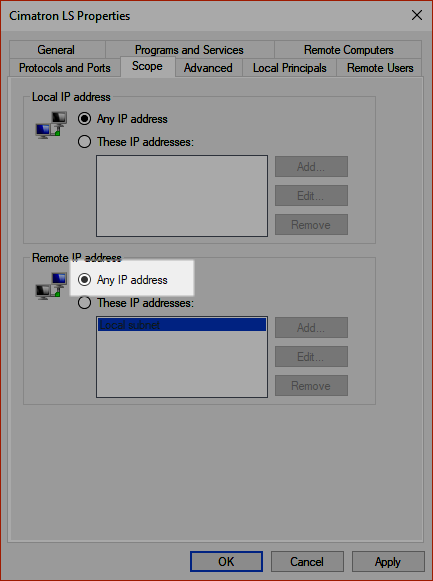
4. Click OK.
The license server utility also uses port 12126 to communicate between the License Service (“CimLmService.exe”) and the License Monitor (“CimService Monitor.exe”).
Antivirus
It is recommended to whitelist the entire folder with all the licensing executables in whatever antivirus/end-point protection software is being used. This folder will depend on the software product and the install directory. The default directories are listed below:
- 3DXpert: C:\Program Files\Oqton\3DXpert\1X.X\Program
- 3D Sprint: C:\Program Files\3D Systems\3D Sprint X.X.X.X\CMLicense
Some users have experienced the error below when trying to activate:
This is caused by some antivirus tools blocking/quarantining part of the activation tool. In this scenario it is recommended to have an IT admin whitelist this application: C:\Users\<username>\AppData\Local\Temp\CimActivate.exe