Please follow the steps below to deactivate a software license. This is a necessary step to change what the license is locked to. These instructions only apply to software versions that are using the new CimLM licensing system.
Floating license users can skip to: Network-Computer-Locked License steps
Computer-Locked License
1) Launch the License Manager on the computer that is currently activated as shown in this article.
2) Double-click on the deactivate icon next to the license in question.
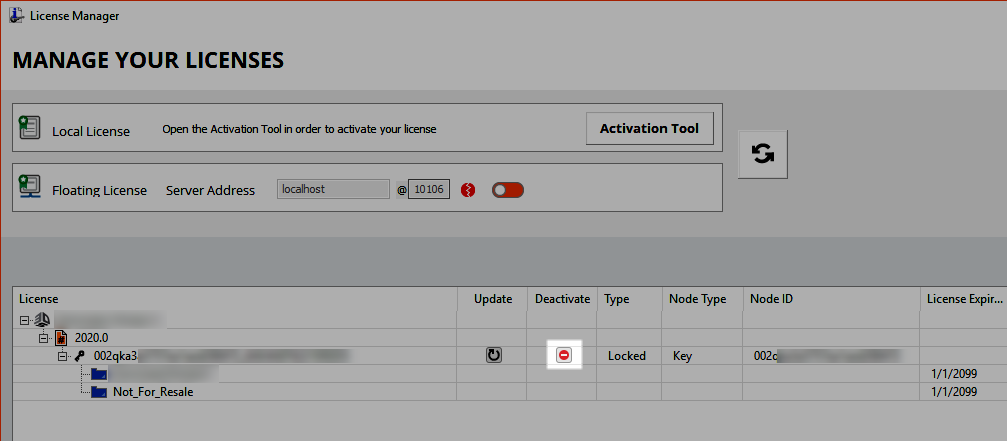
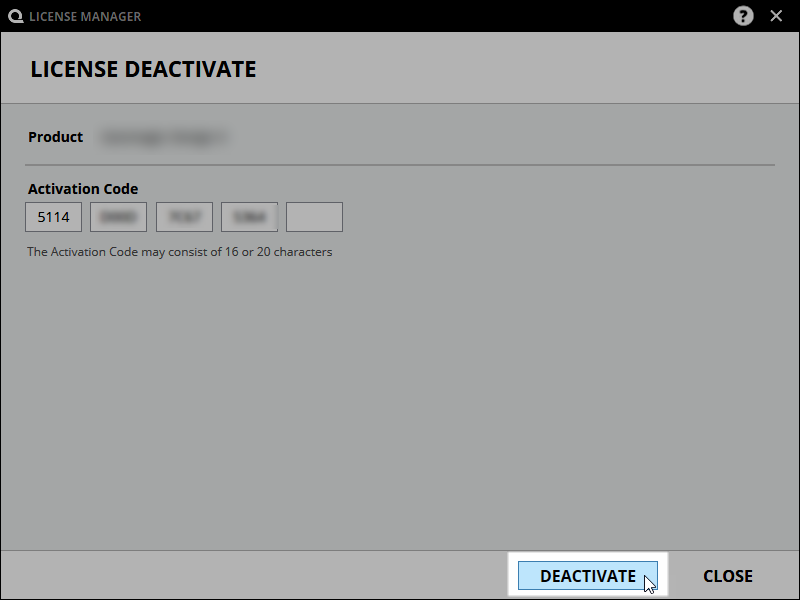
3) Click the DEACTIVATE button.
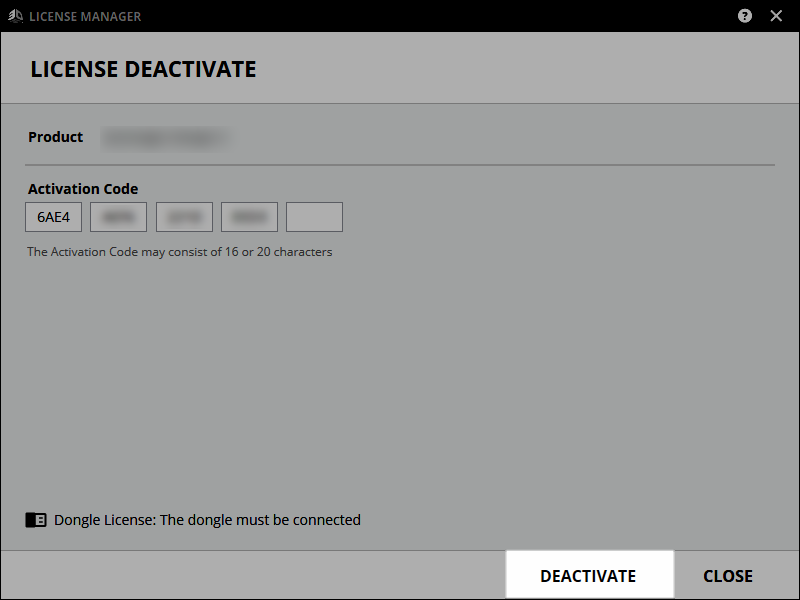
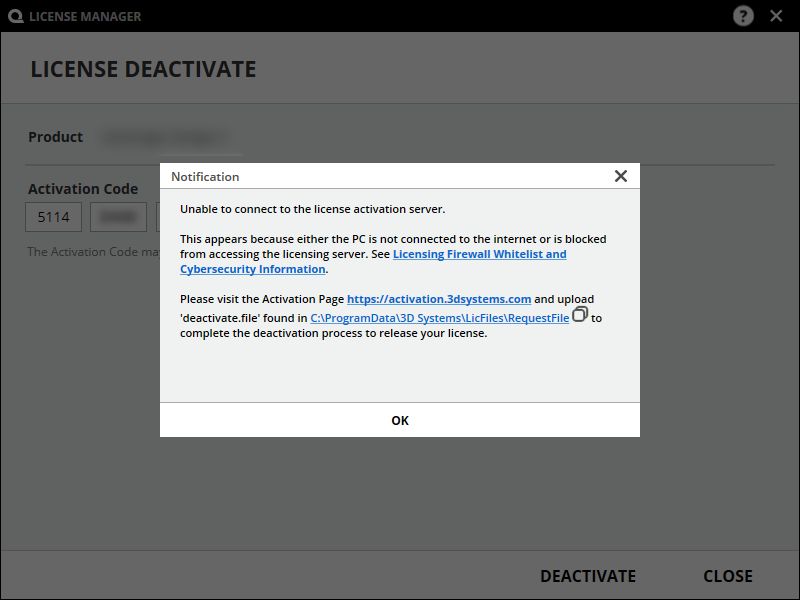
4) If the computer does not have access to the internet the message below will appear. Skip to the Offline Deactivation article.
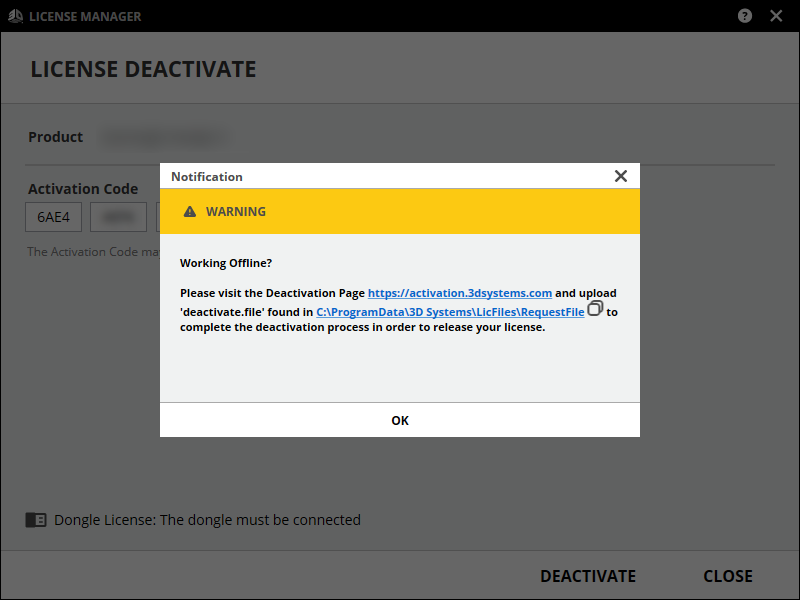
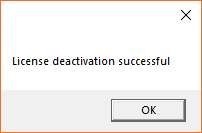
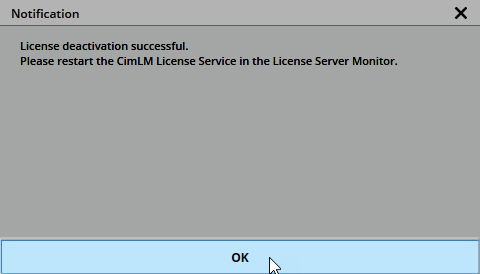
5) Click OK and restart the application.
Dongle-Locked License
Follow the same steps described for Computer-Locked with the dongle connected to the computer.
Network-Computer-Locked License
1) Launch the License Server Monitor: C:\Program Files\Oqton\License Server\CimService Monitor
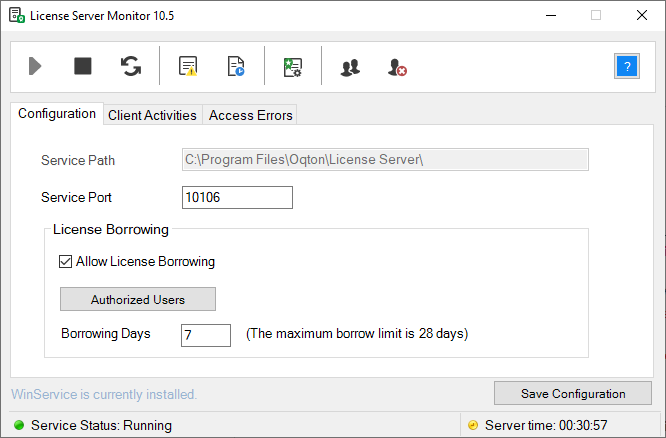
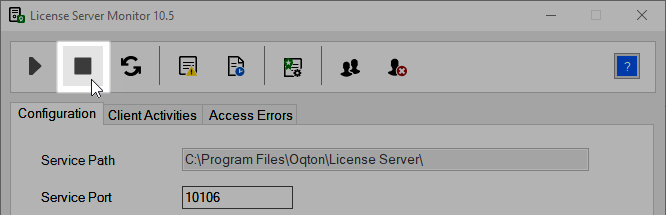
2) Stop the service.
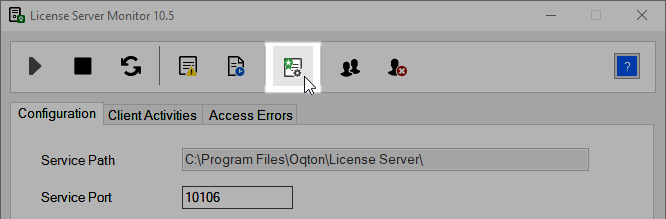
3) Click on License Manager.
4) Click on the deactivate icon.
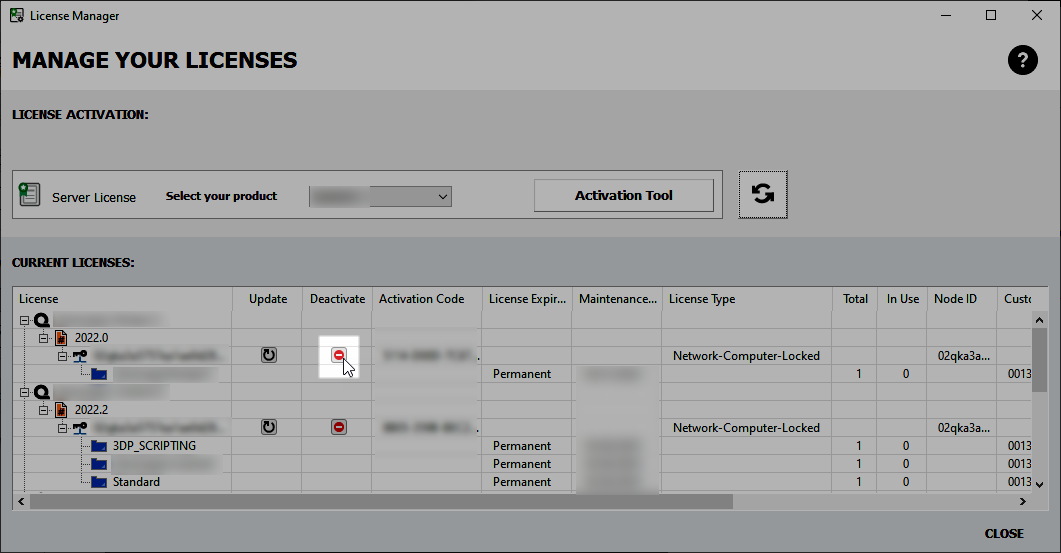
5) Select deactivate.
6) If the computer does not have access to the internet the message below will appear. Skip to the Offline Deactivation article.
7) Click OK.
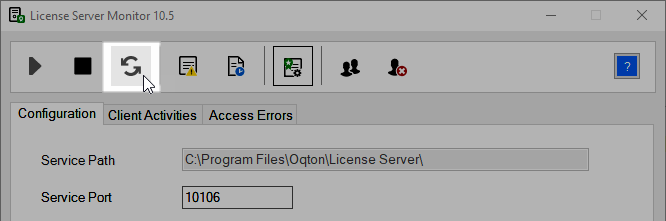
8) Click Restart.
Network-Dongle-Locked License
Follow the same steps as Network-Computer-Locked with the dongle connected.